
TechTip Wednesday: Capturing System ASP Metrics with IBM i SQL
The way we interact with system data on IBM i is evolving quickly. What was once a workflow built around static, point-in-time commands is shifting toward a more dynamic, data-driven approach. Today’s system administrators aren’t just looking to view system performance; they need to capture it, analyze it, and act on it over time.
That shift is exactly where IBM i SQL Services shine. By extending access to system-level data beyond the limitations of traditional CL commands, SQL Services enable a more flexible, scalable, and insight-driven approach to system management one that aligns with how modern IT teams operate.
Why Use SQL Services Instead of CL Commands?
IBM has been leveraging SQL services to gain access to various system functions for several versions now. Often, these services give you access to system administration functions that do not exist in CL commands. For instance, there are many CL commands to view information, but those often only offer a print option to save data for comparison or review later. But there is often an IBM i service offering that lets you run an SQL statement and return the same data to a file or an exportable format.
These SQL services are continually added to or enhanced through the DB2 PTF groups and the Technology Refresh (TR) updates.
https://www.ibm.com/support/pages/ibm-i-services-sql
This series will give a tech note on utilizing some of these IBM i services as a systems administrator.
Understanding System Status and ASP Usage on IBM i
Today’s topic is about the system Auxiliary Storage Pool (ASP1) information.
For years, as a system admin on the IBM i platform, we have used WRKSYSSTS to see some status information about our system. We can see the current CPU usage, the number of jobs in the system, and information about the system ASP (Auxiliary Storage Pool), which is our disk space.

Limitations of WRKSYSSTS for Historical Tracking
The great thing about the WRKSYSSTS screen is that it shows a current view of these items, along with some memory usage information. The downside of WRKSYSSTS is that this is just the current picture of that information. We don’t have a history of those numbers unless you have performance collections running and a very small interval set on the collection windows. Today’s example shows how to obtain that small amount of information and store it in a file you can review later for tracking, if you like.
Using the SYSTEM_STATUS_INFO_BASIC SQL Service to Access System Data
The service function to gain this information is QSYS2.SYSTEM_STATUS_INFO_BASIC, a view provided in the OS since at least 7.3. This view will provide a lot of information about the current state of the system partition, but for this example, we will focus on the system ASP statistics.
To see this information, we start with a small SQL select statement. This can be run within the ‘Run SQL Scripts’ tool of ACS. (The SQL statements are formatted to run in this manner in the examples.)
Querying Current System ASP Statistics with SQL
SELECT current_date AS DATE,
current_time AS TIME,
TOTAL_AUXILIARY_STORAGE,
SYSTEM_ASP_USED,
CURRENT_TEMPORARY_STORAGE,
HOST_NAME
FROM qsys2.system_status_info_basic
This statement will give us an output like this:

How to Interpret System ASP SQL Output
Date as the date when the statement was performed
Time as the time when the statement was performed
Total_Auxilary_Storage as the total available ASP size, in millions of bytes
System_ASP_Used as a percentage of the current ASP1 usage
Current_Temporary_Storage as the current temp storage being used, in millions of bytes
Host_Name as the current partition host name
This is all pretty useful information, right? The same as entering WRKSYSSTS and looking at the upper rightmost portion of that screen. But here is where we can make it more useful for us, we can capture that information into a file.
Creating a Table to Store System ASP Data
Let’s say we want to create a file (or table) to store the information we just viewed with that SELECT statement. We can create a table in a library on the system using this statement:
CREATE OR REPLACE TABLE library.file_name (
RUN_DATE DATE NOT NULL,
RUN_TIME TIME NOT NULL,
TOTAL_ASP DEC(15, 2) NOT NULL,
ASP_USED BIGINT NOT NULL,
CUR_TEMP INTEGER NOT NULL,
HOST_NAME VARCHAR(255) NOT NULL
)
This will create us a file in the library that we specify, using the fields that relate to the same fields in our select statement.
Inserting System ASP Data into a Table for Tracking
Once we have that file, we can redirect our SELECT statement to write the information to it. We need to wrap an INSERT statement around our SELECT statement, which will direct the output into a file instead of being an interactive view:
INSERT INTO library.file_name
(SELECT current_date AS DATE,
current_time AS TIME,
TOTAL_AUXILIARY_STORAGE,
SYSTEM_ASP_USED,
CURRENT_TEMPORARY_STORAGE,
HOST_NAME
FROM qsys2.system_status_info_basic)
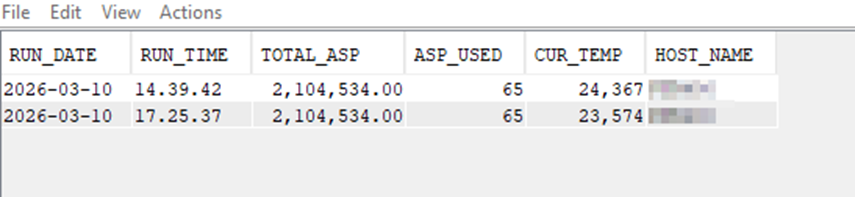
Now, the data we expected to see interactively is written to the file we created. Each time you run this INSERT statement, it adds a new row to the table with the information for that specific date and time it was executed.
Scheduling Automated ASP Data Collection with RUNSQ
Now, let’s take that a step further. Let’s say that you want to track this every 15 minutes for a set period of days. This statement can be converted to run via a CL command (RUNSQL) as well as the interactive ‘Run SQL Scripts’ method. This means that you can schedule a CL command to run at specific intervals and populate that little table:
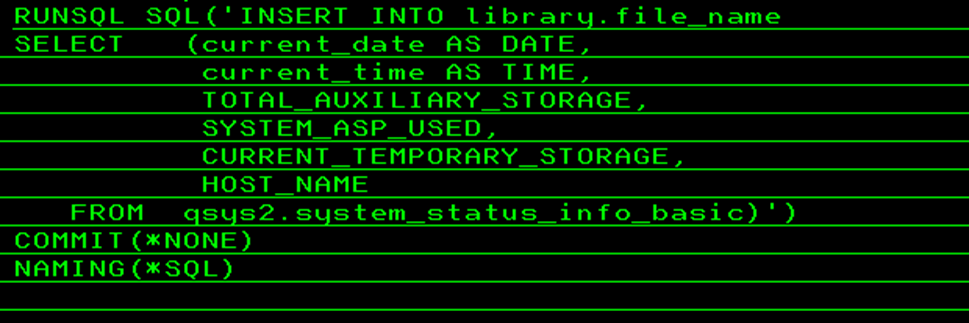
Just like that, you now have a tracking file that shows your system ASP1 information that you can keep long-term. This is a simple reference to seeing when storage increases might occur.
Final Thoughts: Customizing SQL Services for Your Environment
You can make this as simple or as complex as you like. You can create a CL program that will run all the steps of creating (and checking for the existence) of the file, in addition to running the SQL statement to gather your information. You can vary the information you want to collect and include in the file.
Experiment a bit – try different options to find what works for your environment!