
TechTip Wednesday: Managing your Message Queues with SQL

IBM i SQL services provide powerful, flexible access to system information that goes far beyond what traditional CL commands offer. In this TechTip, we’ll explore how the
QSYS2.MESSAGE_QUEUE_INFO service can be used to analyze message queues more efficiently when diagnosing system issues.
Why IBM i SQL Services Are Useful for System Administration
IBM has been leveraging SQL services to gain access to various system functions for several versions now. Often, these services give you access to system administration functions that do not exist in CL commands. For instance, there are many CL commands to view information, but those often only offer a print option to save data for comparison or review later. But there is often an IBM I service offering that will let you run an SQL statement and get that same data into a file or exportable format.
Keeping IBM i SQL Services Up to Date
These SQL services are being added to, or enhanced, all the time with the DB2 PTF groups and the Technology Refresh (TR) updates.
https://www.ibm.com/support/pages/ibm-i-services-sql
This series will give a tech note on utilizing some of these IBM I services as a systems administrator.
Today’s Topic: Diagnosing Issues Using Message Queues
Today’s topic is about how to gather some information from message queues diagnose an issue.
Why Message Queues Matter on IBM i
For anyone that has spent any time on the IBM i server, you will likely end up looking at message queues. These are particularly useful if you are trying to track down a problem.
The Limitations of Searching Message Queues from the Command Line
The drawback to searching these on the command line is that you will have to create an output (spool) file for any search capabilities. That is, unless you really want to search for that “needle in the haystack” by scrolling through screens and screens of message queue output. This is where some of the IBM services and some SQL queries can come in handy. They can be more efficient to aid your search versus exporting spool files to search within.
Introducing QSYS2.MESSAGE_QUEUE_INFO
We will start by looking at a message queue in this first section. Typically, the only way to search a message queue is to output the contents to a spool file. With that output, you could search for a specific message ID or text phrase, but we can also do that with an SQL service: QSYS2.MESSAGE_QUEUE_INFO.
Finding Inquiry Messages in the QSYSOPR Message Queue
First, we will use a simple example to look for inquiry messages that are within the QSYSOPR message queue:
SELECT *
FROM qsys2.message_queue_info
WHERE message_type = 'INQUIRY'
ORDER BY message_timestamp DESC;

This simple statement gives us a lot of information, possibly more than we want (or need), but it gives a starting point to look at QSYSOPR message queue.
Refining Message Queue Results with Specific Columns and Filters
You could change that statement up a little to look for specific messages IDs as well. Note that we subset the fields a bit to narrow down the information being returned:
SELECT MESSAGE_QUEUE_LIBRARY,
MESSAGE_QUEUE_NAME,
MESSAGE_ID,
MESSAGE_TYPE,
MESSAGE_TEXT,
SEVERITY,
MESSAGE_TIMESTAMP
FROM qsys2.message_queue_info
WHERE MESSAGE_ID = 'CPI1133'
ORDER BY message_timestamp DESC;

Investigation Scenario: Tracing an Inquiry Message and Its Reply
Now, let’s set up an investigation scenario.
A critical process on your system halted and sent an inquiry message to QSYSOPR. Normally, you might expect your system operators to call out to a member of the on-call team to report the message so that it could be investigated. However, it seems that the inquiry message was given a reply and the job ended. You need to track down the timing when that reply was given, and who answered the inquiry message.
Matching Inquiry Messages to Replies Using SQL Joins
This example comes from the IBM ACS tool, using ‘Insert from Examples’ within Run SQL Scripts. The select statement joins 2 iterations of the service, allowing you to pair up the Inquiry message from iteration A with the reply from iteration B of the inner join. This one seems a little more complex, but this gives you a way to match up the inquiry message to the reply that was given to it.
SELECT a.message_text AS "INQUIRY",
b.message_text AS "REPLY",
B.FROM_USER,
B.*,
A.*
FROM qsys2.message_queue_info a
INNER JOIN qsys2.message_queue_info b
ON a.message_key = b.associated_message_key
WHERE A.MESSAGE_QUEUE_NAME = 'QSYSOPR'
AND A.MESSAGE_QUEUE_LIBRARY = 'QSYS'
AND B.MESSAGE_QUEUE_NAME = 'QSYSOPR'
AND B.MESSAGE_QUEUE_LIBRARY = 'QSYS'
ORDER BY b.message_timestamp DESC;
Let’s break down some key points in this statement before we look at the results.
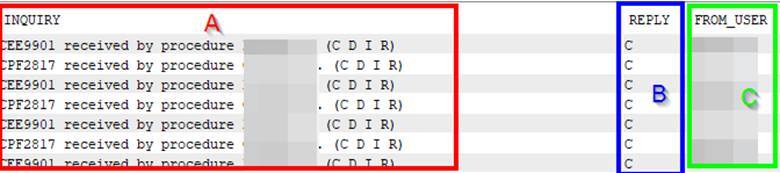
As part of your select order, you see a.message_text AS "INQUIRY", b.message_text AS "REPLY", B.FROM_USER listed – then followed by B.*, and A.*.
This sets up your column order for your results set so that you see the Inquiry message as the first column, the reply given to the inquiry message, and the user that sent the reply.
Understanding MESSAGE_KEY and ASSOCIATED_MESSAGE_KEY
What ties all of this together is the FROM portion, with the INNER JOIN portion of the statement. In this scenario, your join uses the message key field from iteration A, and issues the join from iteration B against the associated message key field.
When a reply is sent to a specific message, the reply captures the key that was associated with the original message to tie the reply back to the original message. This is important, because the reply entry does not capture the original inquiry message text (just the reply text that was sent, more on that below).
Here’s an output that shows how these pair up together:
Original inquiry message (I omitted the inquiry message text):

Here’s the reply details – note the ‘ASSOCIATED_MESSAGE_KEY’ field is the same as ‘MESSAGE_KEY’ above:

Also note on the reply that the ‘MESSAGE_TEXT’ field is the actual reply that was sent to the original message.
Simplifying the Inquiry and Reply Output
Here’s a different look at the same query, but we are utilizing fewer columns in this statement:
SELECT a.message_timestamp,
a.message_text,
a.from_user,
b.message_timestamp,
b.message_text,
b.from_user
FROM qsys2.message_queue_info a
INNER JOIN qsys2.message_queue_info b
ON a.message_key = b.associated_message_key
WHERE a.message_type = 'INQUIRY'
AND b.message_type = 'REPLY'
ORDER BY b.message_timestamp DESC;
This gives a bit more concise view in the output.
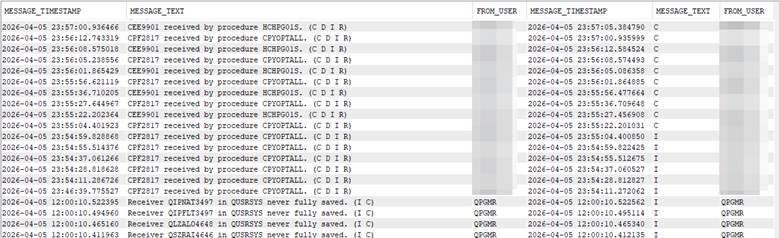
Can you tell me what’s different about this second statement versus the first one that we ran? Hint – the qualifiers on the WHERE are less specific in the 2nd one.
Finding Unanswered Inquiry Messages
For our last example, we want to look for any unanswered messages in the QSYSOPR message queue. Normally, my preference is to have the message queue displayed on my screen (when using DSPMSG command) using Basic Assistance mode. This will push all unanswered inquiry messages to the top of the DSPMSG screen. But, if I cannot change that assistance level, or I simply want a concise view of unanswered messages, this query will gather that information for me. This is another ‘Insert from Examples’ nugget that is supplied with the IBM ACS tool as well:
Using a CTE to Identify Messages Awaiting a Response
WITH REPLIED_MSGS (KEY) AS (
SELECT a.message_key
FROM qsys2.message_queue_info a
INNER JOIN qsys2.message_queue_info b
ON a.message_key = b.associated_message_key
WHERE A.MESSAGE_QUEUE_NAME = 'QSYSOPR'
AND A.MESSAGE_QUEUE_LIBRARY = 'QSYS'
AND B.MESSAGE_QUEUE_NAME = 'QSYSOPR'
AND B.MESSAGE_QUEUE_LIBRARY = 'QSYS'
ORDER BY b.message_timestamp DESC)
SELECT a.message_text AS "INQUIRY",
A.*
FROM qsys2.message_queue_info a
LEFT EXCEPTION JOIN REPLIED_MSGS b
ON a.message_key = b.key
WHERE MESSAGE_QUEUE_NAME = 'QSYSOPR'
AND MESSAGE_QUEUE_LIBRARY = 'QSYS'
AND message_type = 'INQUIRY'
ORDER BY message_timestamp DESC;
This gives the result set, showing the messages that are awaiting a response:

Final Notes and Next Steps
This message queue service does not change the messages on the queue, so it is safe to run on the system without risk. Try some of your own queries to see what information you can come up with to suit your needs: such as trying a fuzzy search on some text in a message ID or just looking for messages from a specific program or job.