
TechTip Wednesday: Using SQL to Assist in System Documentation

IBM i SQL services offer a more efficient way to document system, software, and hardware data by replacing limited CL command outputs with flexible, exportable results. This article walks through key services and demonstrates how to automate and centralize documentation using Run SQL Scripts.
IBM has been leveraging SQL services to gain access to various system functions for several versions now. Often, these services give you access to system administration functions that do not exist in CL commands. For instance, there are many CL commands to view information, but those often only offer a print option to save data for comparison or review later. But there is often an IBM I service offering that will let you run an SQL statement and get that same data into a file or exportable format.
These SQL services are being added to, or enhanced, all the time with the DB2 PTF groups and the Technology Refresh (TR) updates.
https://www.ibm.com/support/pages/ibm-i-services-sql
Introduction to IBM i SQL Services for System Administration
This series will give a tech note on utilizing some of these IBM I services as a systems administrator.
This week’s entry focuses on some system documentation assistance examples.
Why Use SQL Services for System Documentation
No matter whether you manage 1 system/partition, or you manage 20+, having documentation about the systems is always helpful. In this article, we will explore some SQL services that will help you to document attributes about a system.
Software and Configuration Information
Documenting Network and System Attributes
We will start with getting the basics about a system, the system name, and network attributes. While you can normally view this information with the DSPNETA command, using the SQL service gives you the option to output this information via ‘Run SQL Scripts’ (more on why that is helpful later).
Service Name: QSYS2.NETWORK_ATTRIBUTE_INFO
SELECT *
FROM QSYS2.NETWORK_ATTRIBUTE_INFO;

Capturing Installed Software and System Values
This one is self-explanatory, so let’s take a look at another piece, your installed software.
Normally, you might use the DSPSFWRSC command to get a list of all the IBM (and sometimes vendor software, if they used the IBM installation methodology) software and languages installed on your partition. But, as we have noted several times in other examples, this command is limited to your display or a spool file. Neither of these options are very helpful in terms of documentation, unless you want to copy and paste a lot of details. However, using the service offering QSYS2.SOFTWARE_PRODUCT_INFO gives an output that can be stored for documenting those products:
SELECT *
FROM QSYS2.SOFTWARE_PRODUCT_INFO;
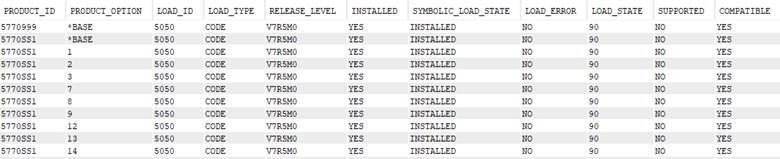
Experiment with this one, as it has lots of columns available to you. You might change the order of columns, or even use a WHERE clause to just look at a particular product ID. This output is quite versatile!
Tracking Relational Database and Scheduled Job Data
Next on the list, we will gather our Relational Database Entries from the system. These are definitions your system uses to connect to local or remote databases, so these are important to document. The command is DSPRDBDIRE to gather these (this command includes an output file on the system option for once), but using the service QSYS2.RDB_ENTRY_INFO gives us a more palatable output for our documentation efforts (and the bonus is coming at the end of the article):
SELECT *
FROM QSYS2.RDB_ENTRY_INFO;

Another bit of information that may be useful in your documentation comes from your system values. These are good to document, especially ahead of certain activities like an operating system upgrade or a system migration. During those operations you often must change some of these values, so having a documented starting point can be handy:
SELECT *
FROM QSYS2.SYSTEM_VALUE_INFO
ORDER BY SYSTEM_VALUE_NAME;

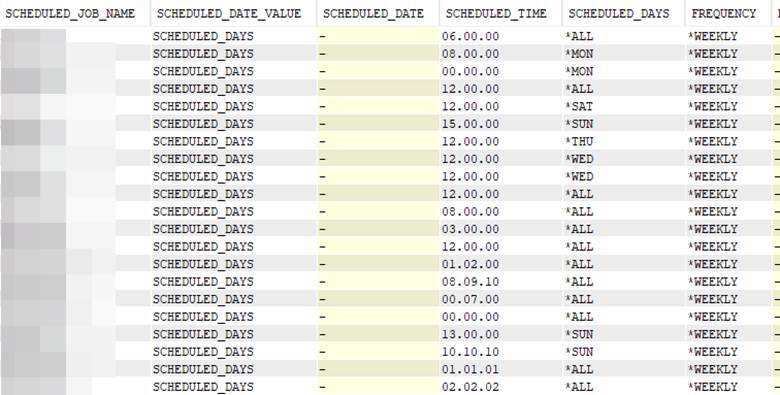
As we continue, another documentation point for many organizations are their scheduled jobs. If you use the IBM job scheduler that is part of the base operating system, you can gather these into an external file as well using a service. You can even schedule to pull these into a file on the system if you want to compare changes over time.
SELECT *
FROM QSYS2.SCHEDULED_JOB_INFO
ORDER BY SCHEDULED_JOB_NAME;
Gathering TCP/IP and Network Configuration
A couple other documentation points to offer is gathering TCP/IP configuration. The services for those are: QSYS2.NETSTAT_INTERFACE_INFO and QSYS2.NETSTAT_ROUTE_INFO
Using these services, you can gather your currently defined TCP/IP interface and route information. (Refer to the previous article “Using SQL Services to Monitor Networking Info” to see more examples of those services.)
Are there other things that you would like to document for a system? There is a chance that IBM has provided a service to gather that information as well!
Hardware Information
Now that we have documented several parts of the operating system and configuration, we may want to include some hardware documentation as well. There are several services that are helpful in this area.
Documenting System and Hardware Resources
First, let’s get the basic configuration of the system (along with the OS version) using the service SYSIBMADM.ENV_SYS_INFO:
SELECT *
FROM SYSIBMADM.ENV_SYS_INFO;

Analyzing Disk Configuration and Storage Data
Now, let’s gather up the hardware resource information. Normally, we would review this using the WRKHDWRSC command, but there is a caveat to that command. You have to pick which type of resource, such as processor, storage, or communications hardware to use that command. This is a bit limiting if you want to document things, as you would need to review these categories one at a time. But using the QSYS2.HARDWARE_RESOURCE_INFO service gives you everything at once. This output does not nest the resources visually, but it does all of the information in a single view (without the need to work with configuration status or display resource detail):
SELECT *
FROM QSYS2.HARDWARE_RESOURCE_INFO;
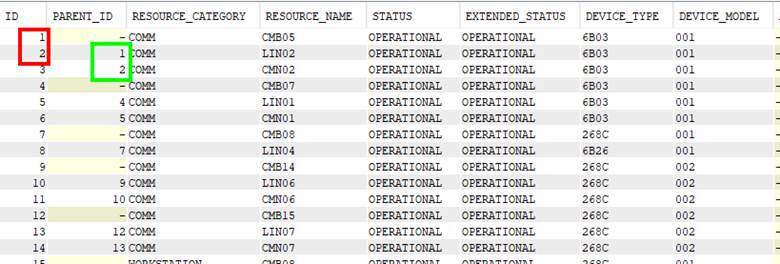
Note the boxes above, as those indicate the “nesting” by pointing to the ‘parent ID’ of each resource.
Try experimenting with the columns on this particular service to see what fits your documentation needs. There are many columns in this service that might not be all that useful, but maybe there are others that you want to move around in your display output.
Now, let’s gather some information about our disk hardware on the system. This service is also helpful because it will gather disk path information, which is normally something you would need to log into service tools to review. The service is QSYS2.SYSDISKSTAT, and gives a wealth of information. In our example, I am going to limit to looking at the disk drive listing, and the path status.
SELECT ASP_NUMBER,
DISK_TYPE,
DISK_MODEL,
UNIT_NUMBER,
SERIAL_NUMBER,
RESOURCE_NAME,
RESOURCE_STATUS,
HARDWARE_STATUS,
HOST_WWPN,
REMOTE_WWPN,
MULTIPLE_PATH_UNIT,
UNIT_STORAGE_CAPACITY,
UNIT_SPACE_AVAILABLE,
UNIT_SPACE_AVAILABLE_GB,
PERCENT_USED
FROM QSYS2.SYSDISKSTAT;
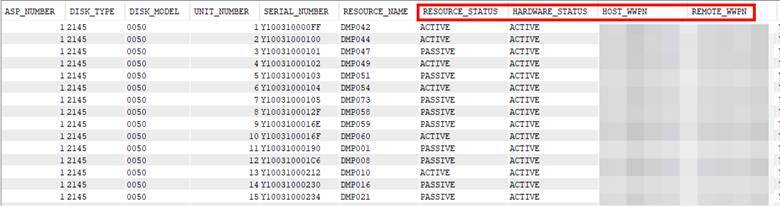
Note the box above, as these are normally items you do not see on the WRKDSKSTS command output.
Automating Documentation with Run SQL Scripts
So, I have hinted at a final point on this article, and now is the time to deliver! For any statements that you run within ‘Run SQL Scripts’, there are a couple of handy features in the editor. The first is that you can have multiple statements in the same editor, with each statement being completed with a ; (semi-colon) to designate the end of a statement. This allows you to have multiple statements, which you can then save to a PC file for re-use.
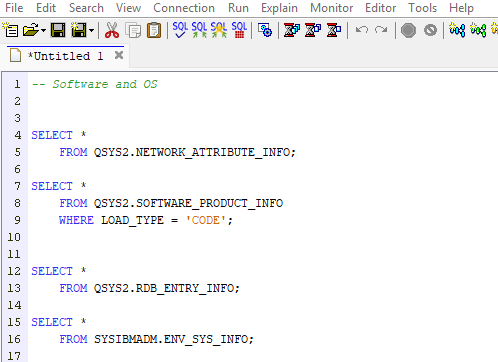
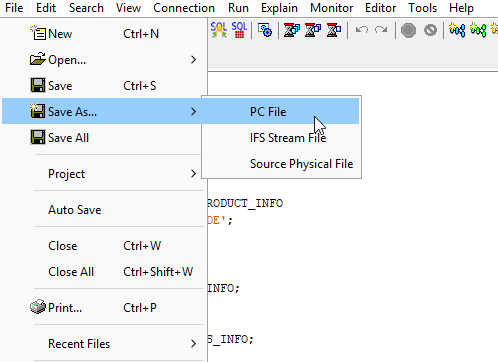
This allows you to save the compilation of statements for future use, or to have a routine that grabs all of the documentation in a single operation for you.
Final Thoughts on Using SQL Services for IBM i Documentation
Explore the options in your ‘Run SQL Scripts’ application, and you will also find the option to ‘Enable Save Results’. This is found under your Connection panel:
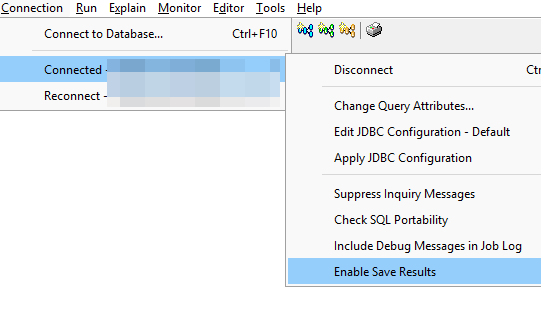
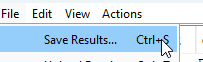
Now, when a result set comes up (or multiple), you can save those results into a spreadsheet file or other file of your choice.
If you notice the hourglass run options (or click the Run menu bar option), you will see 3 different choices:
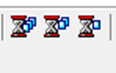 or
or 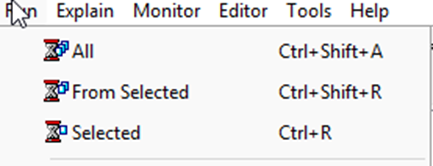
Once you open ‘Run SQL Scripts’ and make your connection to a system, simply open the PC file that contains your statements for documentation. Then you can click ‘Run All’ to get all your documentation output with just a few keystrokes!
Hint: Remember to use the ‘Enable Save Results’ option above to be able to pull all the output into files of your choice. Then you can pull tabs together into a single spreadsheet for instance.