
TechTip Wednesday: Using SQL to Track Down Disk Consumption – Part 2
IBM i SQL services provide powerful system‑administration capabilities that go far beyond traditional CL commands, allowing administrators to extract, analyze, and export detailed system and IFS data. This article demonstrates how to use IFS_OBJECT_STATISTICS and related services to identify large objects, track storage consumption, and better manage the Integrated File System.
IBM has been leveraging SQL services to gain access to various system functions for several versions now. Often, these services give you access to system administration functions that do not exist in CL commands. For instance, there are many CL commands to view information, but those often only offer a print option to save data for comparison or review later. But there is often an IBM i service offering that will let you run an SQL statement and get that same data into a file or exportable format.
Understanding IBM i SQL Services for System Administration
These SQL services are being added to, or enhanced, all the time with the DB2 PTF groups and the Technology Refresh (TR) updates.
https://www.ibm.com/support/pages/ibm-i-services-sql
This series will give a tech note on utilizing some of these IBM i services as a systems administrator.
This week’s entry is an add-on to the entry from last week where we looked at finding items using up your disk space, but from a library structure perspective. In this article, we will use some examples to investigate the IFS structure for those consumers as well.
Why the IFS Matters in Disk Consumption Analysis
Many of us immediately think of the library structure when it comes to looking for disk consumption. The object structure is what the IBM i is based upon after all. But we have another segment that we cannot overlook – the Integrated File System (IFS). In the notion of integration, the IBM i supports a full Unix-like file structure (including access to the library structure) via the IFS. This enables a lot of compatibility with other file structures, so the adoption of the IFS has grown over the years.
Finding the Largest Objects in a Specific IFS Directory
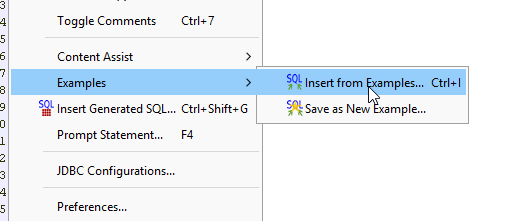
Let’s kick off with a look at finding the biggest consumers in a specific directory. This is an example that is included with IBM Access Client Solutions via the ‘Run SQL Scripts’ app. It has been included in those examples for quite some time, as this service was introduced in 7.3 of IBM i OS.
SELECT path_name,
object_type,
data_size,
object_owner
FROM TABLE (
qsys2.IFS_OBJECT_STATISTICS(start_path_name => '/usr', subtree_directories => 'YES')
)
ORDER BY 3 DESC
LIMIT 10;
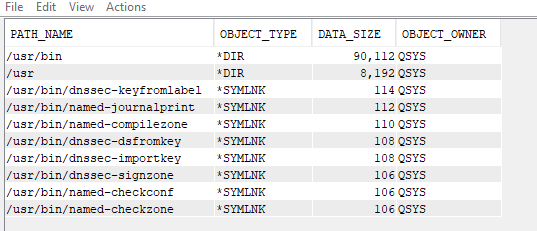
Using the IFS_OBJECT_STATISTICS table function, you can view all types of information about the IFS. In the example above, we are looking that the top 10 largest objects in the ‘/usr’ directory.
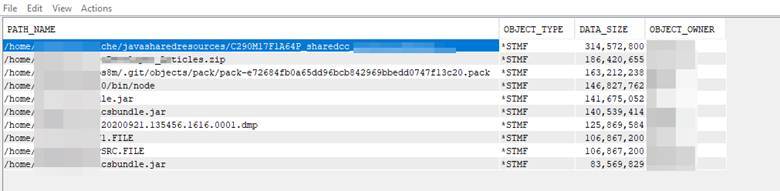
You can update that to a specific directory as well, such as ‘/home’ to gather the same information.
There are some specialty selections on this table function as well, such as being able to omit QSYS.LIB in your review. You can read more about that in IBM’s documentation here.
Analyzing Disk Usage Across the Entire IFS
In the next example, we want to look at a larger view of the IFS and find out our largest objects across the whole structure. This is another example that is available in the ‘Run SQL Scripts’ app under the ‘Examples’ selection.
This adds some additional columns into your result set, such as the ‘create_timestamp’ and the ‘access_timestamp’ to help in determining if this is actively used.
A cautionary note: This is going to look at the bulk of the IFS, so it might take some time (and compute resources) to complete. (Hint, my connection job was taking 10% of the CPU at times while this was running.)
SELECT path_name,
object_type,
data_size,
object_owner,
create_timestamp,
access_timestamp,
data_change_timestamp,
object_change_timestamp
FROM TABLE (
qsys2.ifs_object_statistics(start_path_name => '/', subtree_directories => 'YES', object_type_list => '*ALLDIR *NOQSYS')
)
WHERE data_size IS NOT null
AND object_owner NOT IN ('QSYS')
ORDER BY 3 DESC
LIMIT 10;

You might notice that there is a quite large directory listed at the top. But if you look closely, you can see that it is a *DDIR for the object type – and the path is ‘/QOPT’. This indicates that the I_BASE_01 media (for some version) is actually still in the optical drive of the system! This query really does look through all the paths on the IFS, including the optical drive.
Identifying All IFS Objects Owned by a Specific User
Another example (included with ACS) allows you to gather up a list of everything in the IFS for a specific user. This might be helpful if you need to delete a user profile (and reassign their objects to another profile), or just simply want to see what a user owns in the IFS in a single view. This will continue to use the IFS_OBJECT_STATISTICS function, since it contains all the IFS data. But we also see the QSYS2.OBJECT_OWNERSHIP view used here as a reference. (If you recall, that view will show object ownership in the library and IFS data structures both.)
WITH ifsobjs (path, type) AS (
SELECT path_name,
object_type
FROM TABLE (
qsys2.object_ownership('User_Goes_Here')
) a
WHERE path_name IS NOT null
)
SELECT i.*,
data_size,
z.*
FROM ifsobjs i,
LATERAL (
SELECT *
FROM TABLE (
qsys2.ifs_object_statistics(start_path_name => path, subtree_directories => 'NO')
)
) z
ORDER BY data_size DESC;
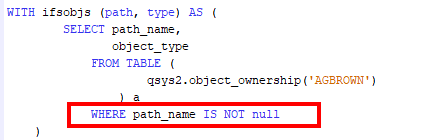
In this example, you are getting a temp result set of a path, and an object type, but only those results that are not blank for the path. This limits to just the IFS objects being listed that are owned by the user ID provided.
Next, the main portion of the query is taking the variables from the temp result of ifsobjs (via the lateral join) to pull an entry for each object path listed in the temp result. With this combination, you get a list of the owned objects and the size (as well as the contents of what IFS_OBJECT_STATISTICS can provide – we will take a deeper look at that in a moment).
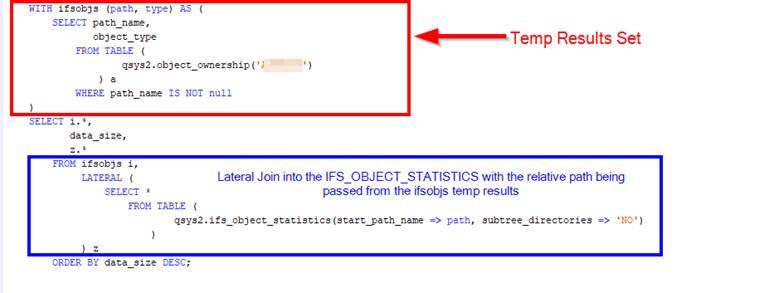
Of note, the main query using IFS_OBJECT_STATISTICS does not search the subtree directories. It is not needed, because the initial temp result set already has a full list of all items in the IFS that are owned by the specified user. This is just simply matching the path results (using the path variable for the start_path_name expression). Since the path variable is the full relative path name in every line of ifsobjs, we get a direct match without needing the subtree listing option on IFS_OBJECT_STATISTICS.
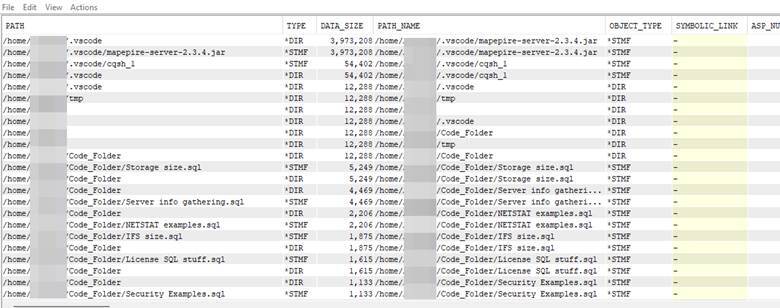
Understanding the Query Output and Column Structure
If you were to scroll those results to the right, you would see numerous columns that were returned via this query. It might be more than you really want to see to be honest – especially if you are tracking down the sizes.
In the main portion of the query, the columns listed are:
- i.* - this pulls in all columns of i (the identifier given to the temp result set)
- data_size – this is a column in IFS_OBJECT_STATISTICS, which is called out here for a specific placement in the final results set
- z.* - this will pull all remaining columns from the result set of the main query (which were identified as z)
You can short this column list (and change the order if you prefer) by simply choosing the columns you want. Since the result set in ifsobjs (identified with ’i’) have unique column names that do not overlap with the IFS_OBJECT_STATISTICS result columns – you can leave out the identifier. However, it is good practice to always use the alias identity for clarity in ‘production-level’ code and scripts.
Example excerpt using a mixture of naming:
SELECT i.*,
data_size,
ASP_NUMBER,
z.TEXT_DESCRIPTION,
CREATE_TIMESTAMP,
z.DATA_CHANGE_TIMESTAMP,
LAST_USED_TIMESTAMP,
z.DAYS_USED_COUNT
Please don’t use this in your scripts – get in the habit of using the alias identifiers. Those who come behind you will appreciate it!
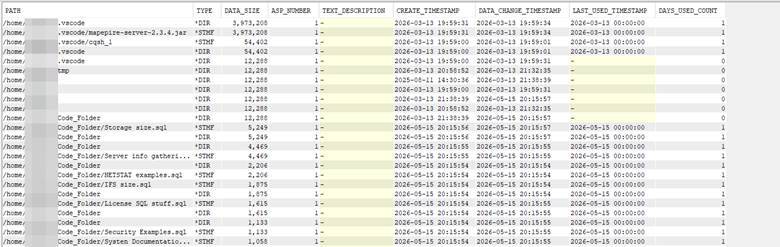
But, using my shortened “example” above gives you a bit cleaner view now:
Tips for Safely Running These Queries on Production Systems
As mentioned in previous articles, try different things with these examples. Be cautious to not be too broad in your selection criteria if you try these on a production level system. They are just select statements though, so you are not changing anything by running them (just consuming some compute power).
Additional Tools: Analyzing IFS Storage Consumption
As a bonus, there is another method that will summarize your IFS directories for a total size of a base directory path (including the subtrees). I don’t use it as often these days, but it is still part of the ACS ‘Insert From Examples’ dialogue as part of the SYSTOOLS category. This one is called ‘Analyze IFS Storage Consumption’ and includes some CL commands in it (namely RTVDIRINF into some database files). You should look at that one, and read through it as well!
Final Thoughts on Leveraging IBM i Services
Hopefully, this series has given you some useful tools and knowledge around the IBM i services. It has been fun to share the IBM i services with you over the last several weeks. I would encourage you to dig into those even more, especially with the frequency that the team at IBM is adding newer options with Technology Refresh and DB2 PTF groups.